


This is a long post, decent explanation with many pictures. There is no TL:DR for this one.
My old Xbox controller developed Dpad issues and drift on the sticks, so I decided on not only try repairing but upgrading the beasty with my new tools.
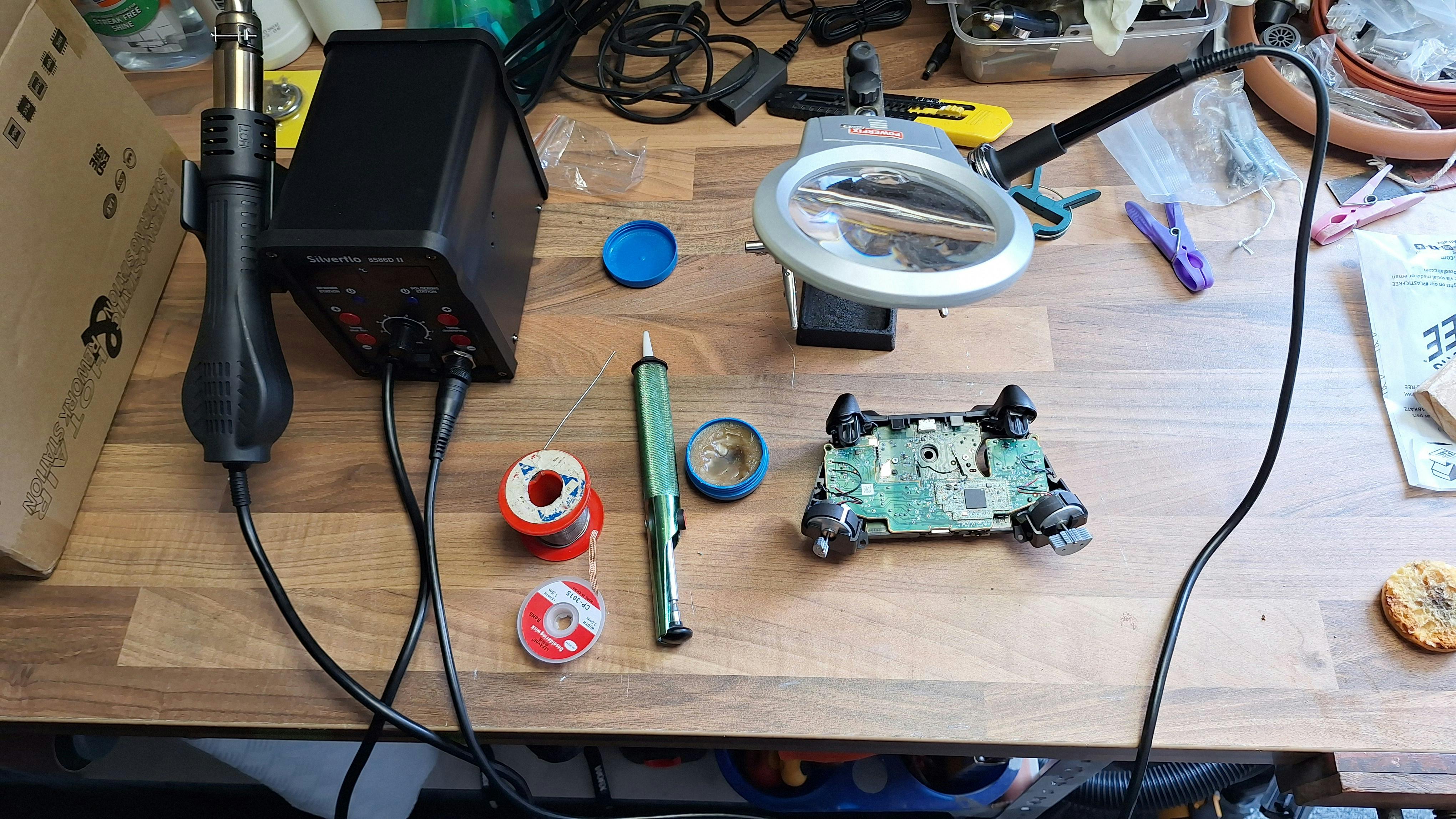
I've got a few soldering irons, but I treated myself to a soldering rework station, hot air and an iron. Pretty cheap in all honesty, £35 all in, got some more tips for it, flux and more copper wick at extra cost but that's irrelevant as I didn't use those. For the record, you don't need a £200 station to do good work. The tech is pretty simple and has been around a long time now, so you don't need a brand name piece of kit. Cause £35-£300, it's only as good as you are skilled.
Anyway, tools and stuff needed for this repair are:
A rework station with iron and air capabilities.
Third hand weighted clamps are a massive help here.
Solder extractor of any kind.
Solder, leaded makes it easier but be sure to do it in a well ventilated area.
Any parts needed for repairs, in my case TMR boxes and the Dpad stickers.
Isopropyl alcohol and cotton buds.
Xbox need a couple of Torx screws, so a decent iFixit kit is spot on here.
Nitrile gloves and heat resistant gloves for the hot air.
First step is to strip down the controller, pop the rear outer grips off that exposes 2 screws either side and a 5th and final screw in the battery compartment under the sticker. I'm glossing over this because I want to show the soldering side of things. The front and rear plates come off leaving you with a middle skeleton with the boards attached.
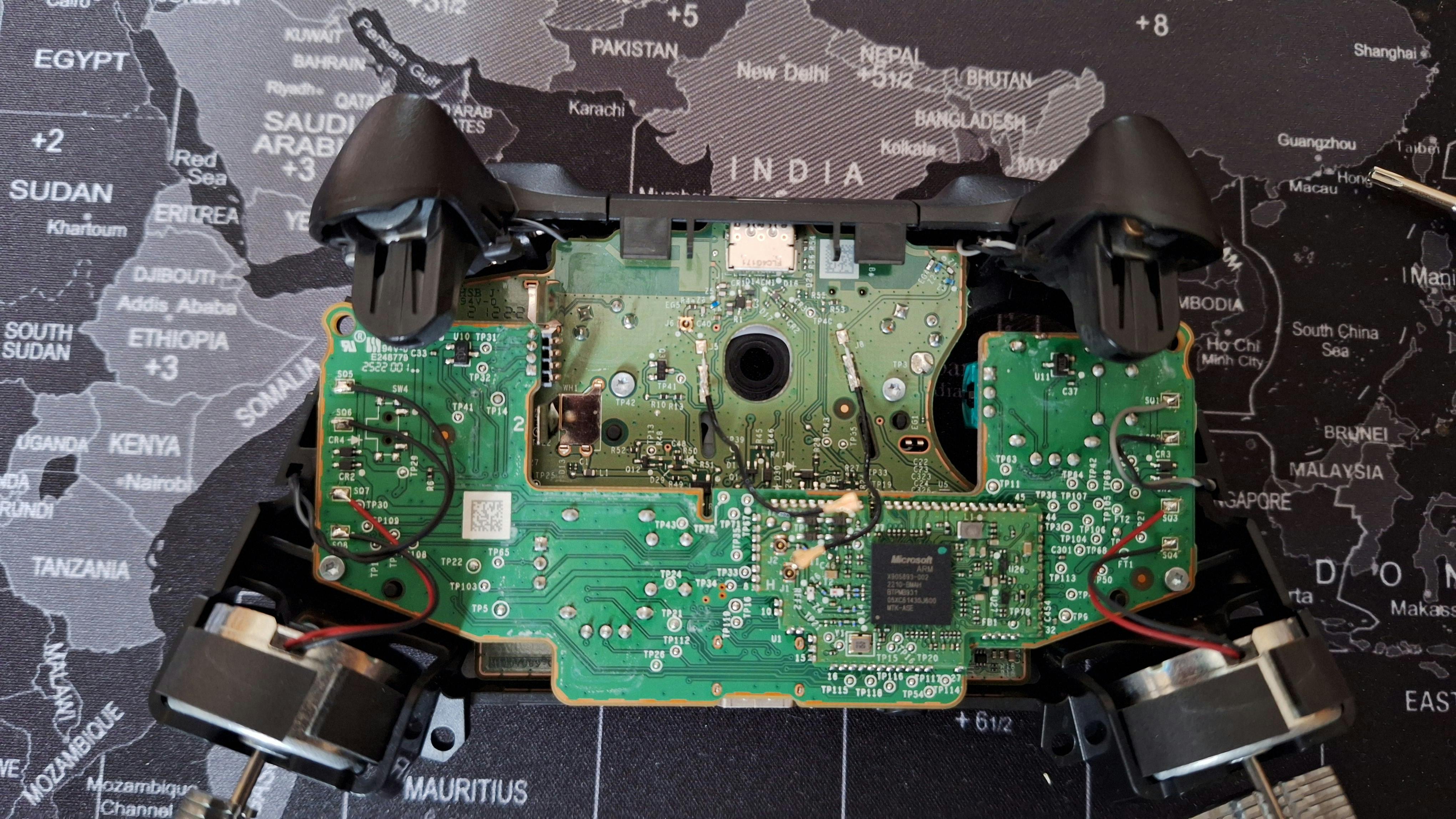
Disconnect the Bluetooth antennas, Get your soldering iron ready cause you need to desolder the wires you see as they're not plugged.
Once the cables are clear of the board you can remove another 2 torx to release the board with the analog boxes attached to it.
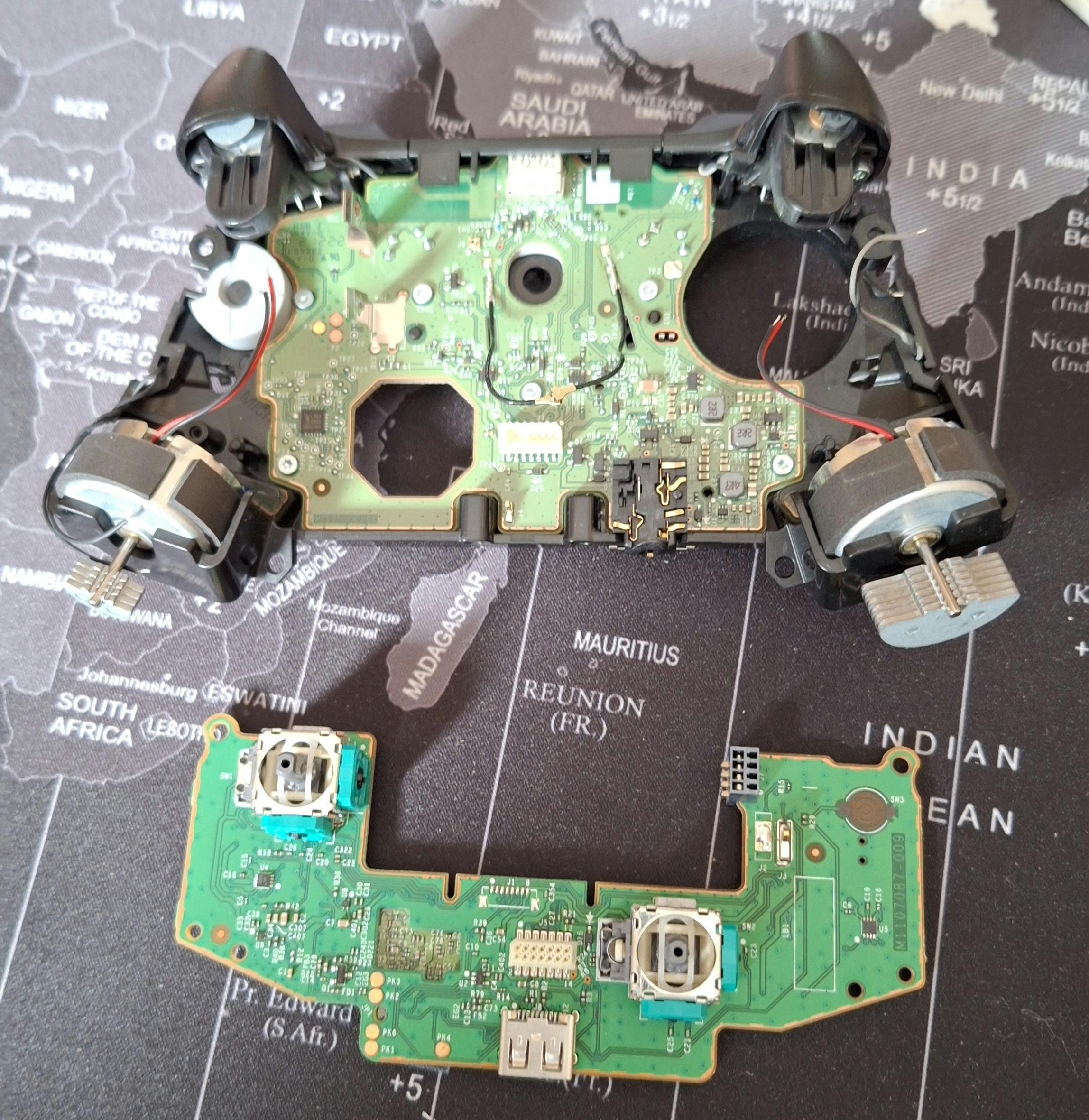
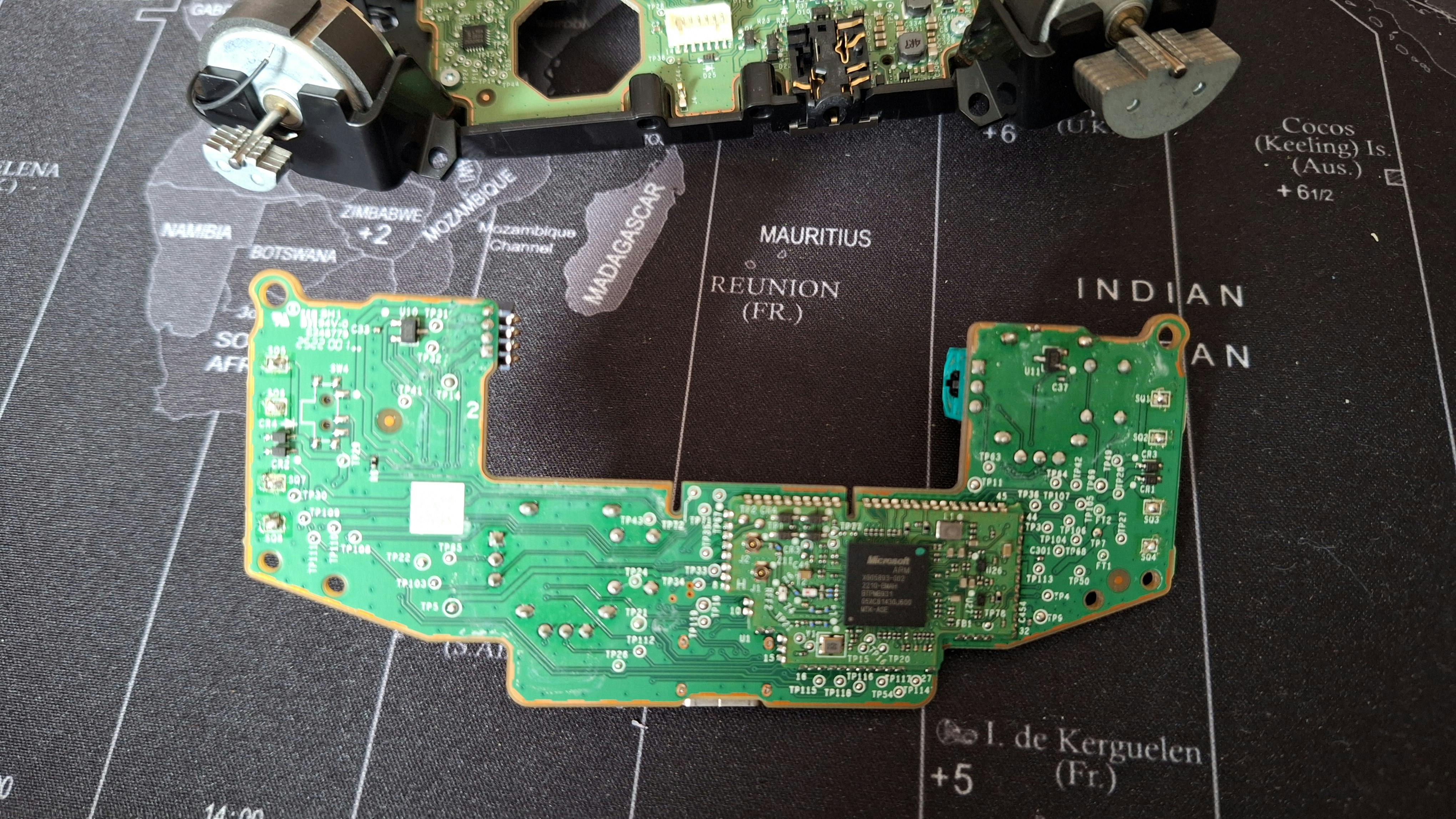
There are 6 torx holding the button board in place, once removed, you need to slide the top USB C cover off by levering it over 2 pegs at the front. with screws and that gone, the front board will come out.
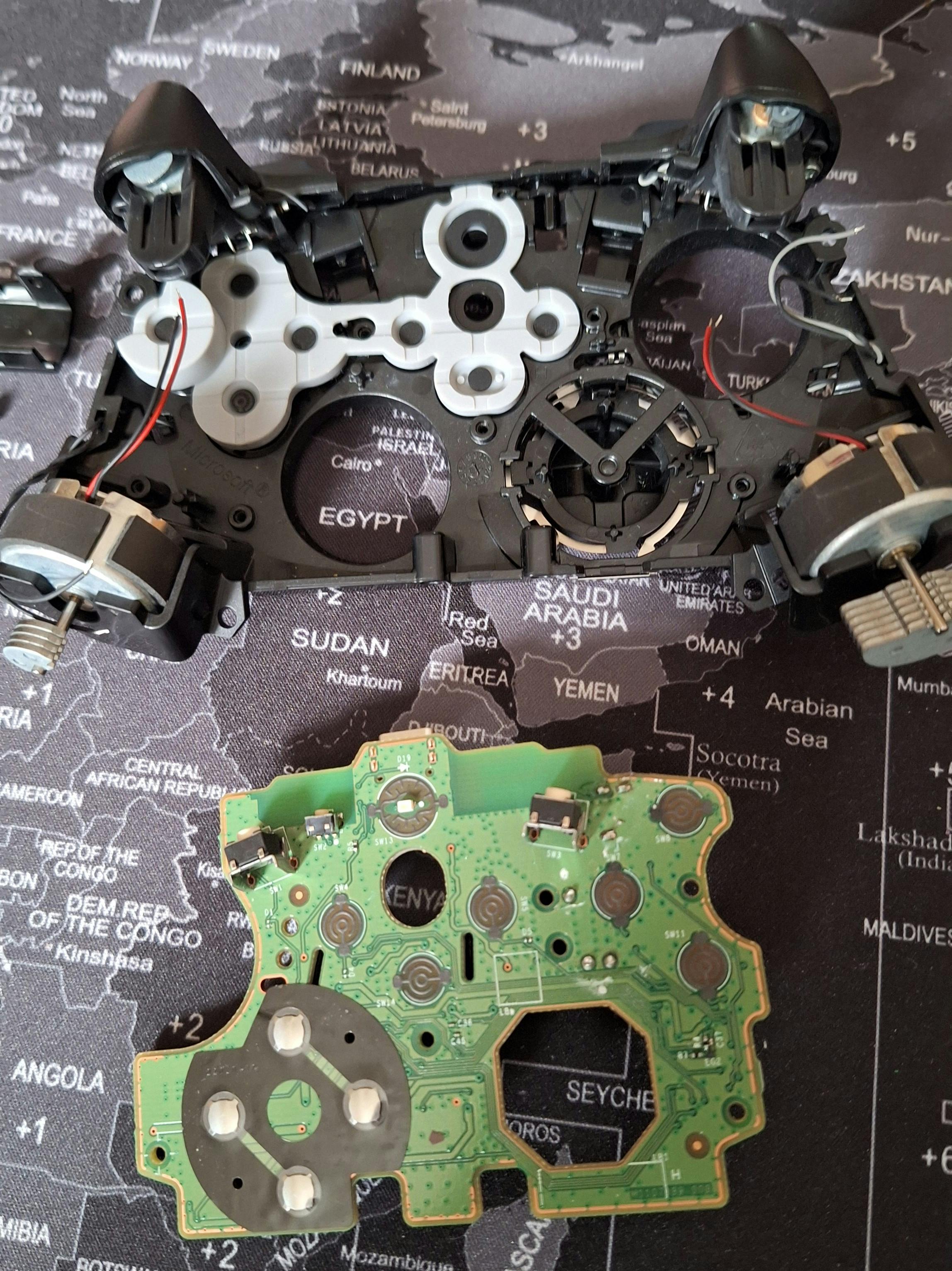
Sometimes the Dpad issue can be remedied by removing the Dpad without removing the boards for full access and cleaning the Dpad and the little sticky clicky pad. When dust and crud gets under there it can stop the clicky dome declicking. Though the domes can fatigue and not pop up as they should and replacing the sticker and clickers is the way to go. Since I was already in there... I replaced it.
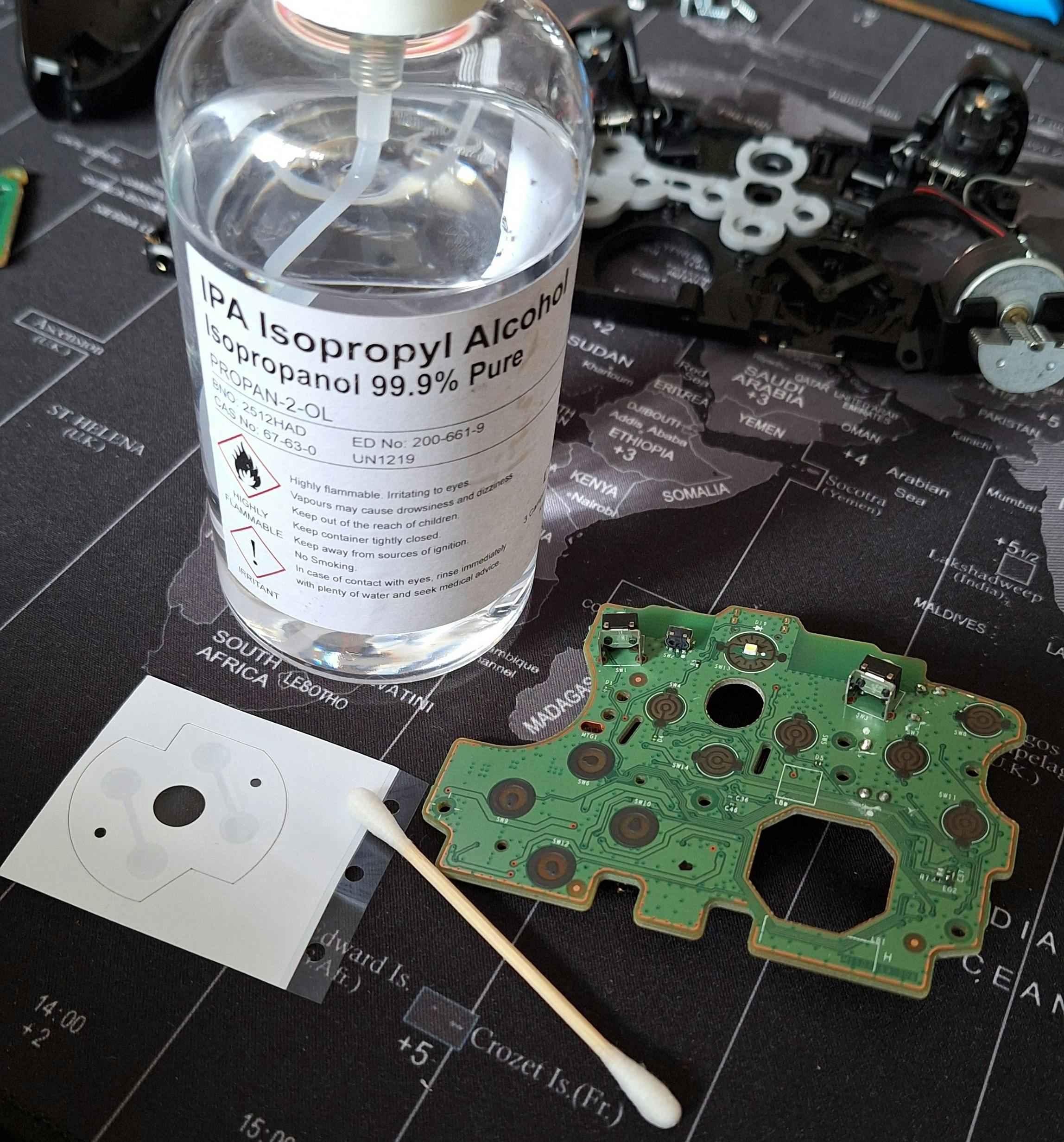
Once removed, carefully clean the contacts with iso and a bud, make sure it's dry and dust free, then apply the new sticker in the same orientation as the one removed, and line up the 2 holes in the sticker to the ones in the board for the proper position. Rub out any bubbles and make sure they're nice and clicky again. I cleaned all the contacts for all buttons and all the pads on the silicon conductive pads too. Drop the board back in place, making sure all the silicon pads and buttons are properly situated first. Screw it back in and test the shoulder buttons are still clicky, then put the USB C top cover back in place, again make sure the shoulder buttons work cause sometimes this can pinch and they get stuck.
There's the Dpad issue fixed!
Now the fun part begins, the desoldering of those analog boxes. To start with I tend to use a knife to bend the potentiometers away from the main box, removing these separately makes the whole job easier.
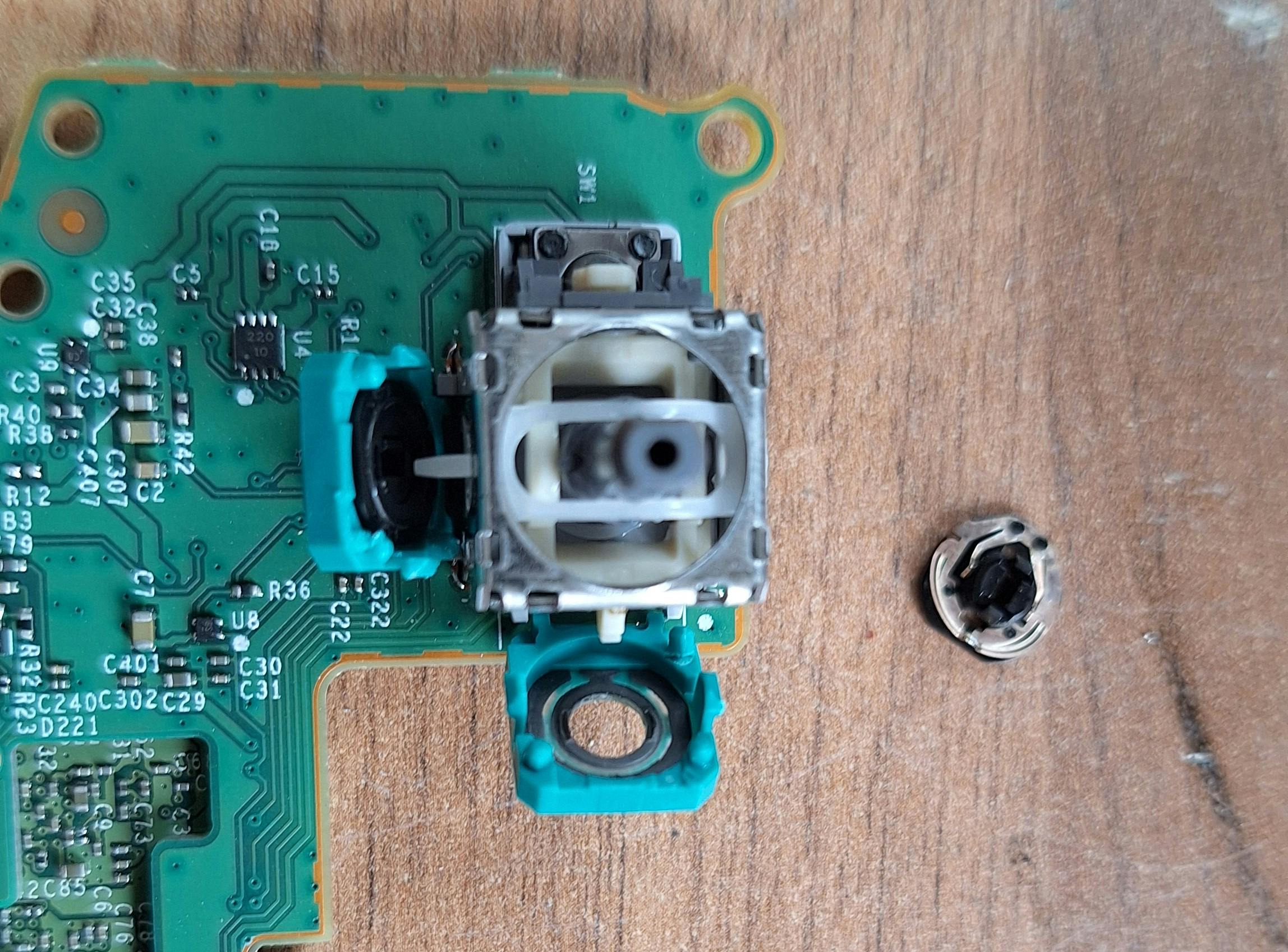
These are the mechanical parts that wear and can cause drift over time as they make contact. Hall effects and TMRs have no contacting parts here, so no wear... no drift.
The easiest way to remove the green part and 3 pins is to purposely flood it with solder.
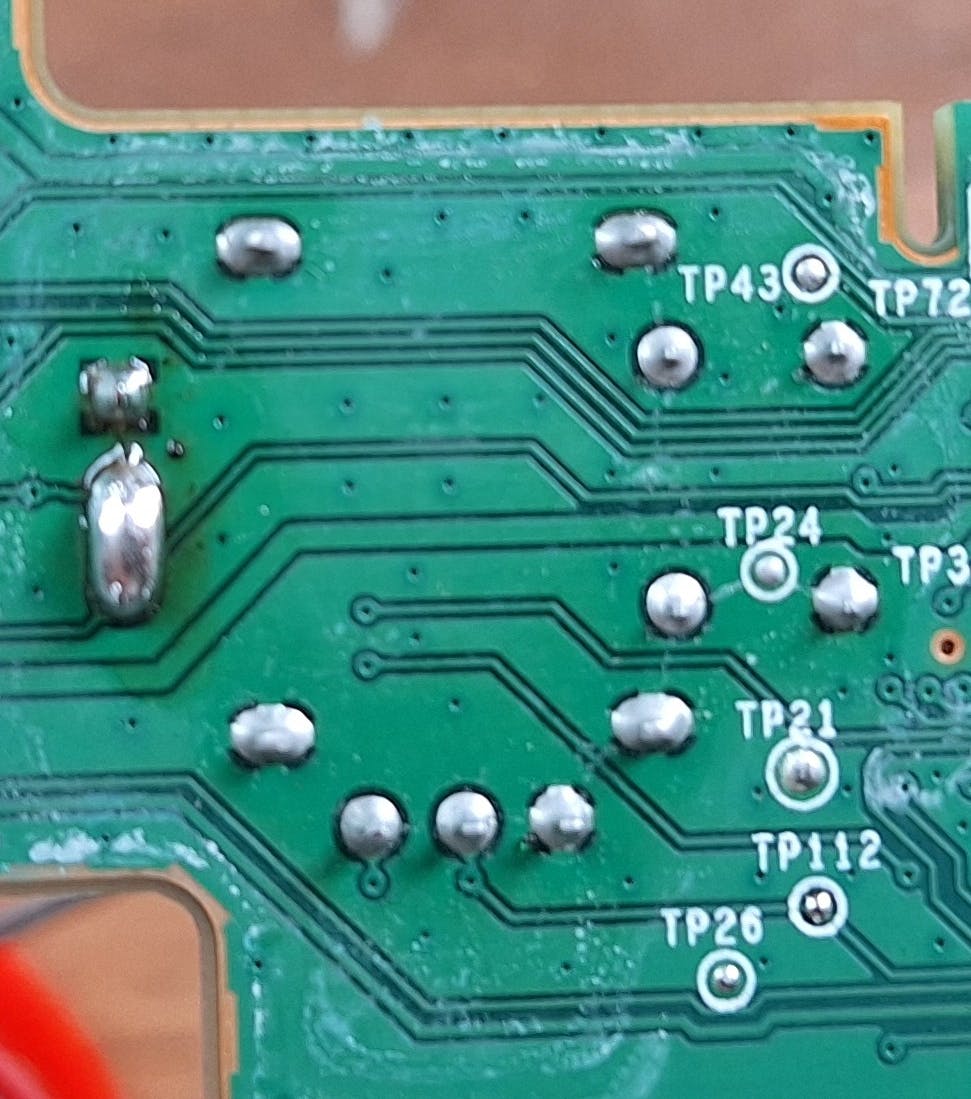
On the left you'll see an abundance of it, I use my Iron at 480c, in and out as quickly as you can. Lay it over those 3 pins and wiggle it underneath, as soon as the solder is in full flow it'll drop right out. Repeat for the other one and now we need to address all the other pins, anchors and remaining solder in the holes.. Same principle here, add more solder than necessary and this time be ready with the desoldering tool.
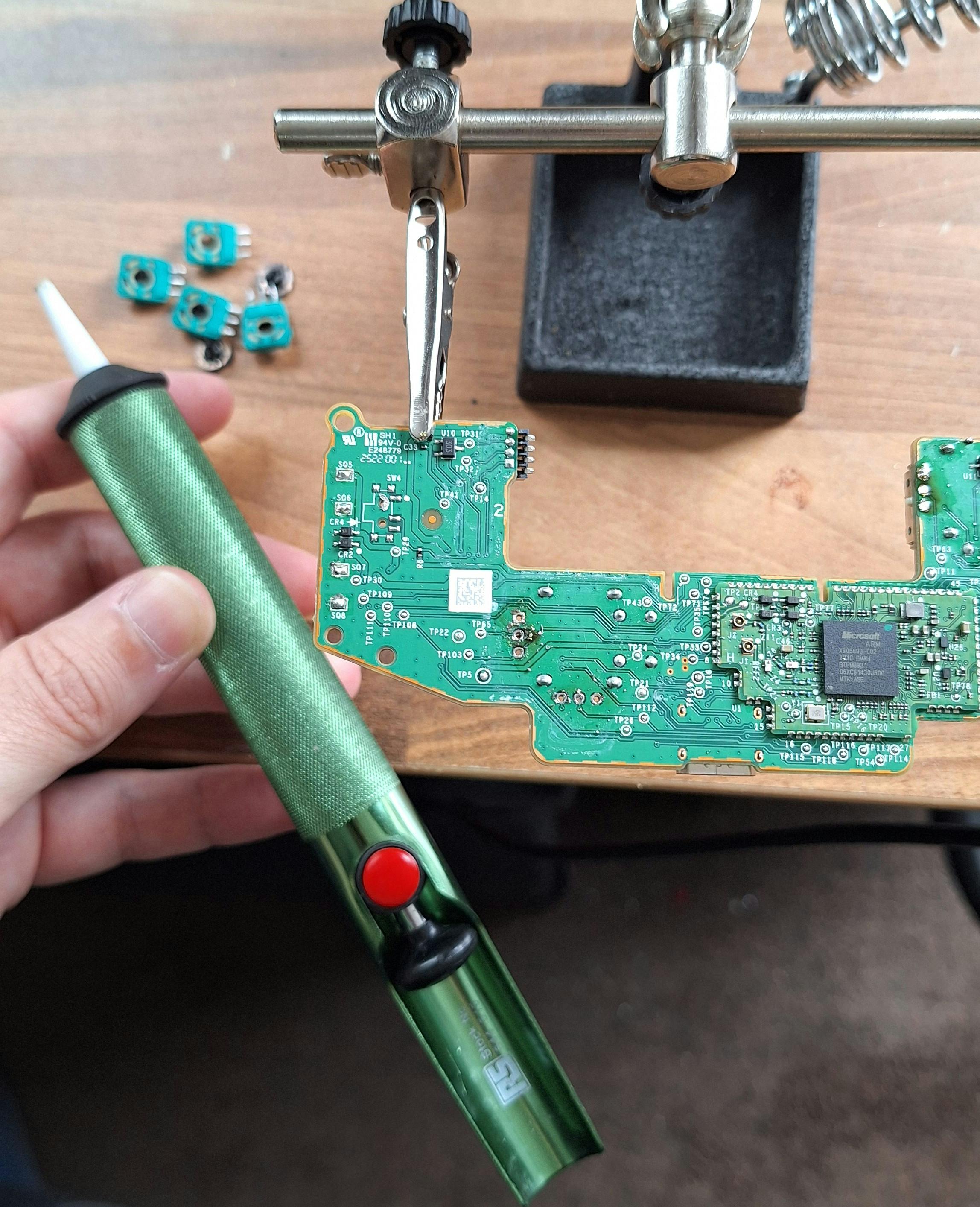
Use the tip to get the solder you want to remove flowing, the use the extractor to pull it all away.
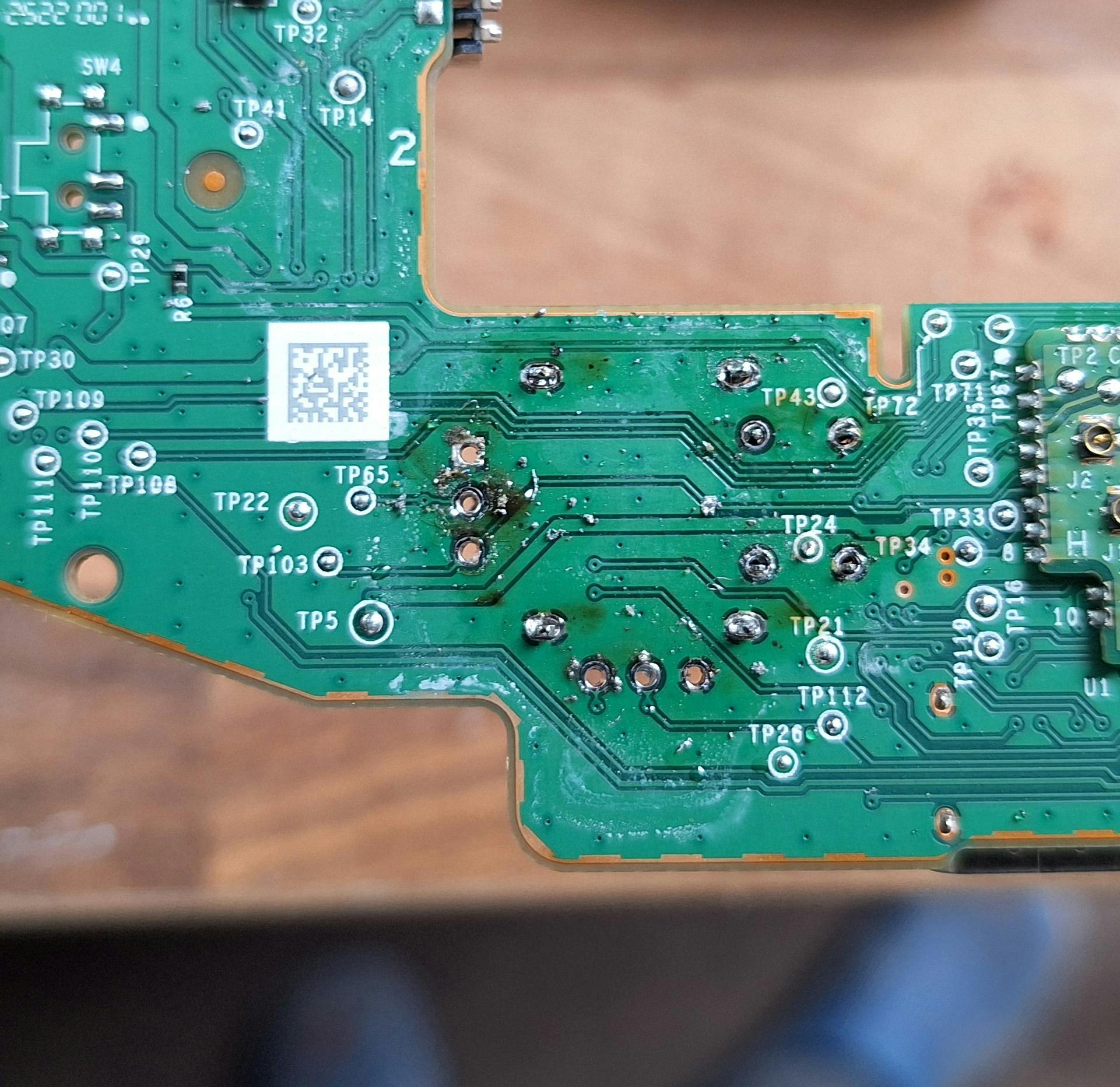
Chances are there will still be trace amounts keeping the module in place, this is where hot air comes in.
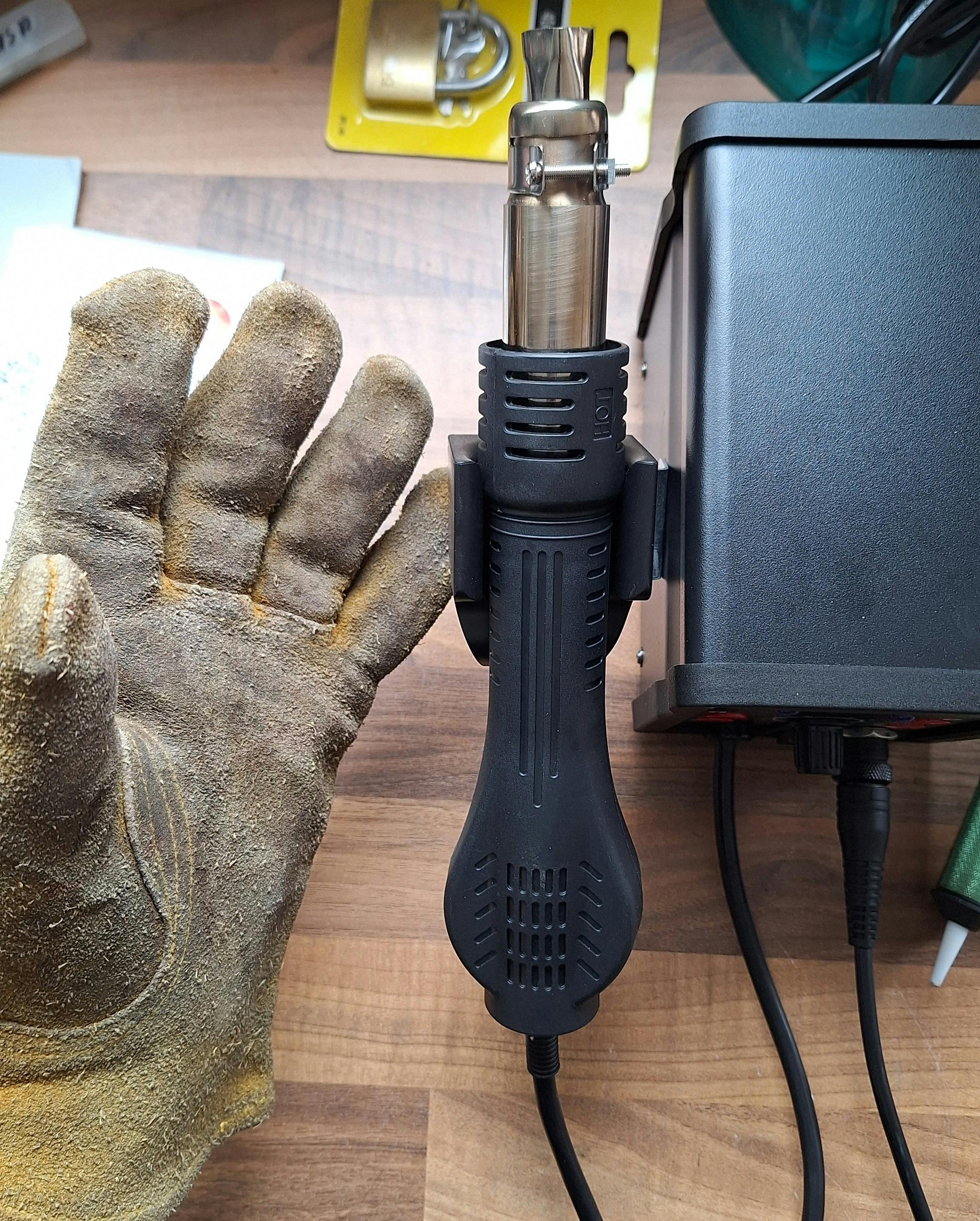
Nice heat resistant glove and 480c hot air, work the area you want to desolder with the heat and keep attempting to wiggle the box free, once the solder flow, you can pull the box free.
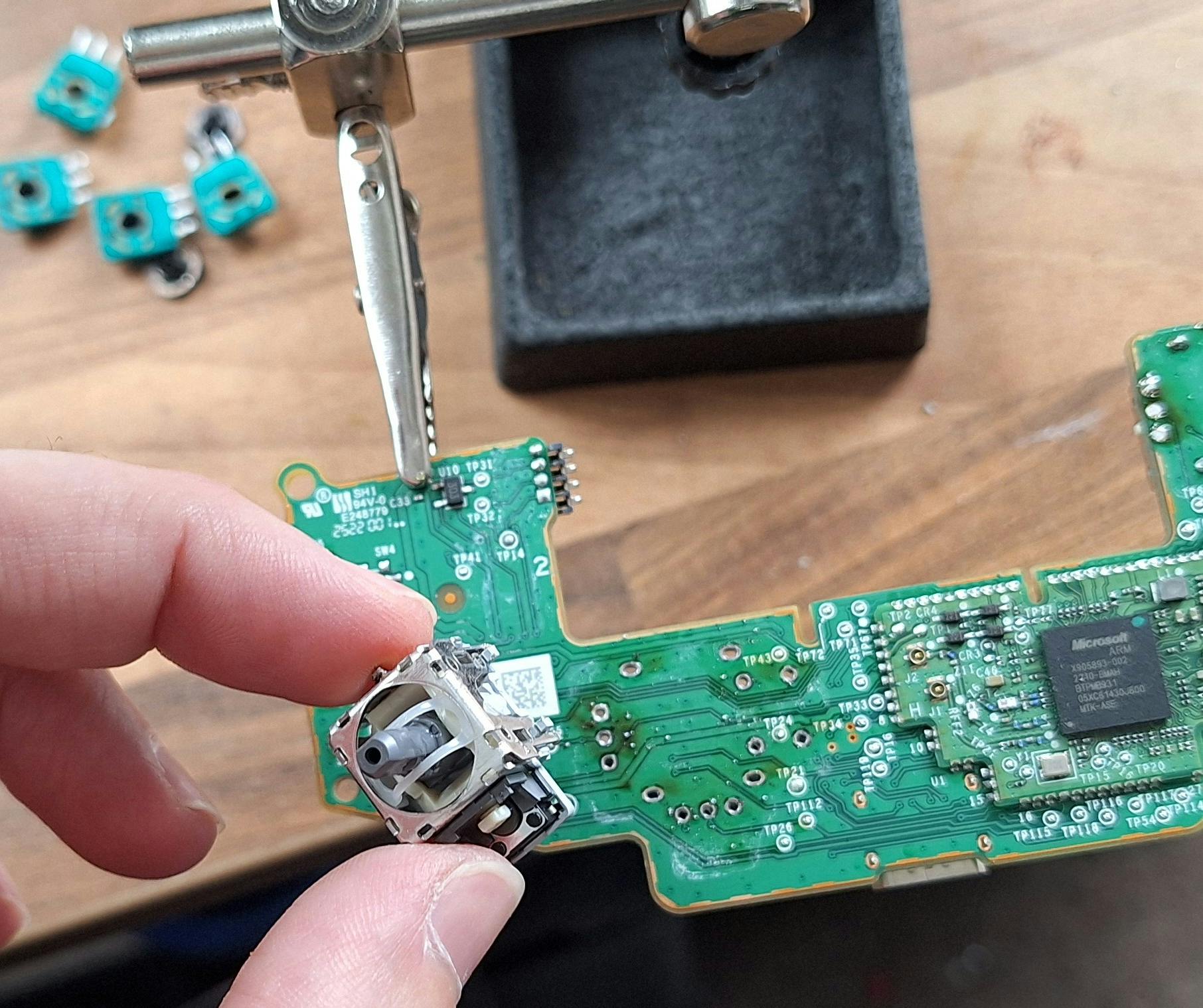
Repeat for the other module and all we need to do is pop in the new TMRs!

I got mine from Zedlabs, used a lot of their stuff over the years and they're great quality and fantastic customer service too.
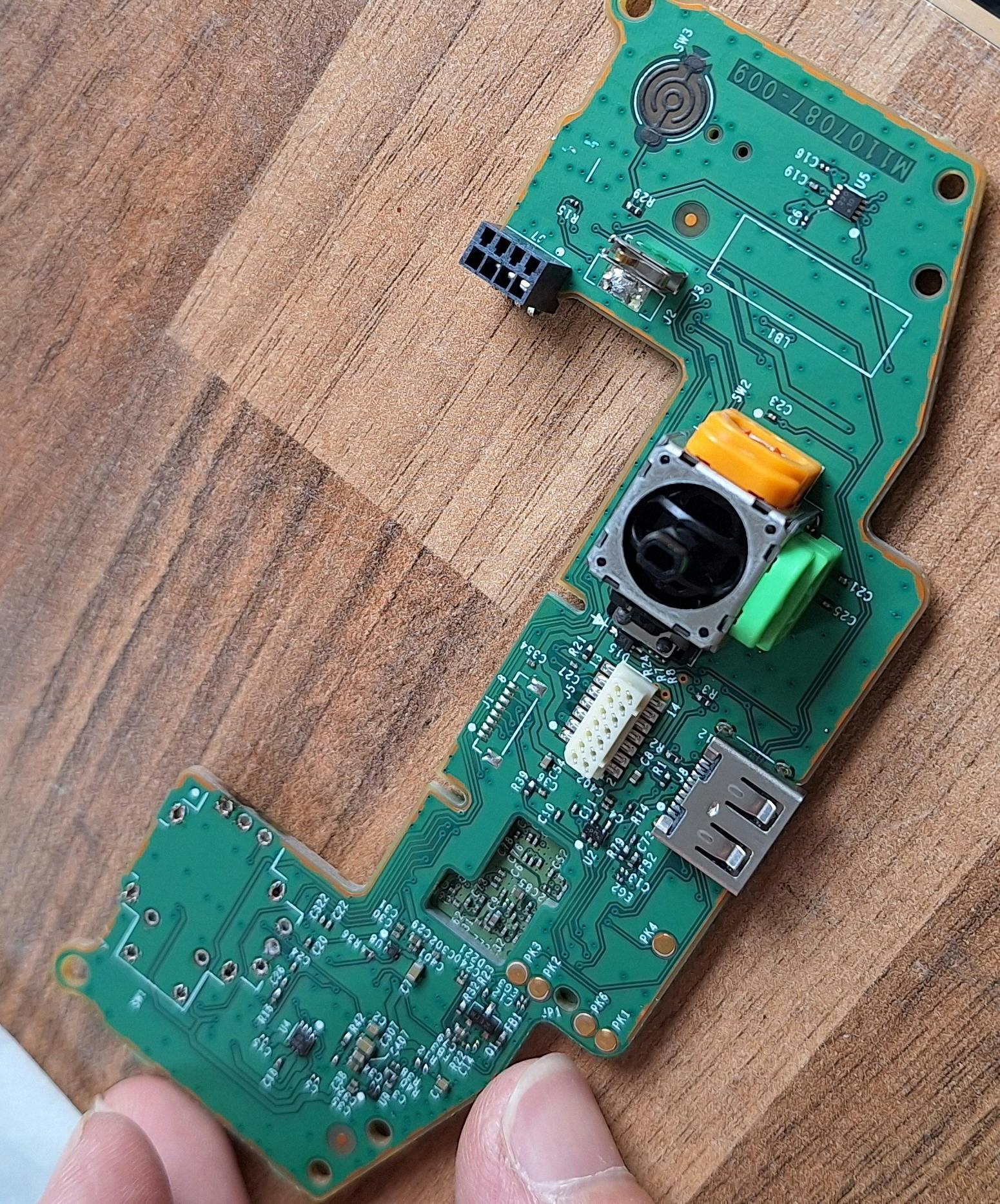
All the points we desoldered, we now solder in the new one. Make sure the module is pressed all the way in. My solder has a flux core, flux keeps the metal and connections clean and solid, but I also have flux to hand just in case. When soldering stuff back in, you want to make sure the joint is solid, and shiny. You don't want too much solder as it goes everywhere, but you need enough for it to flow. Always handy to see how it looked before. A little extra isn't going to hurt but you don't want to have Mt Solder hanging off your board either. Hold it for a few seconds to be sure it flows and binds, but don't go ham, there's plastic still attached to the module itself and heat travels, be sure not to burn the board or module.
When you're all soldered up get some alcohol and a brush and clean up your work.
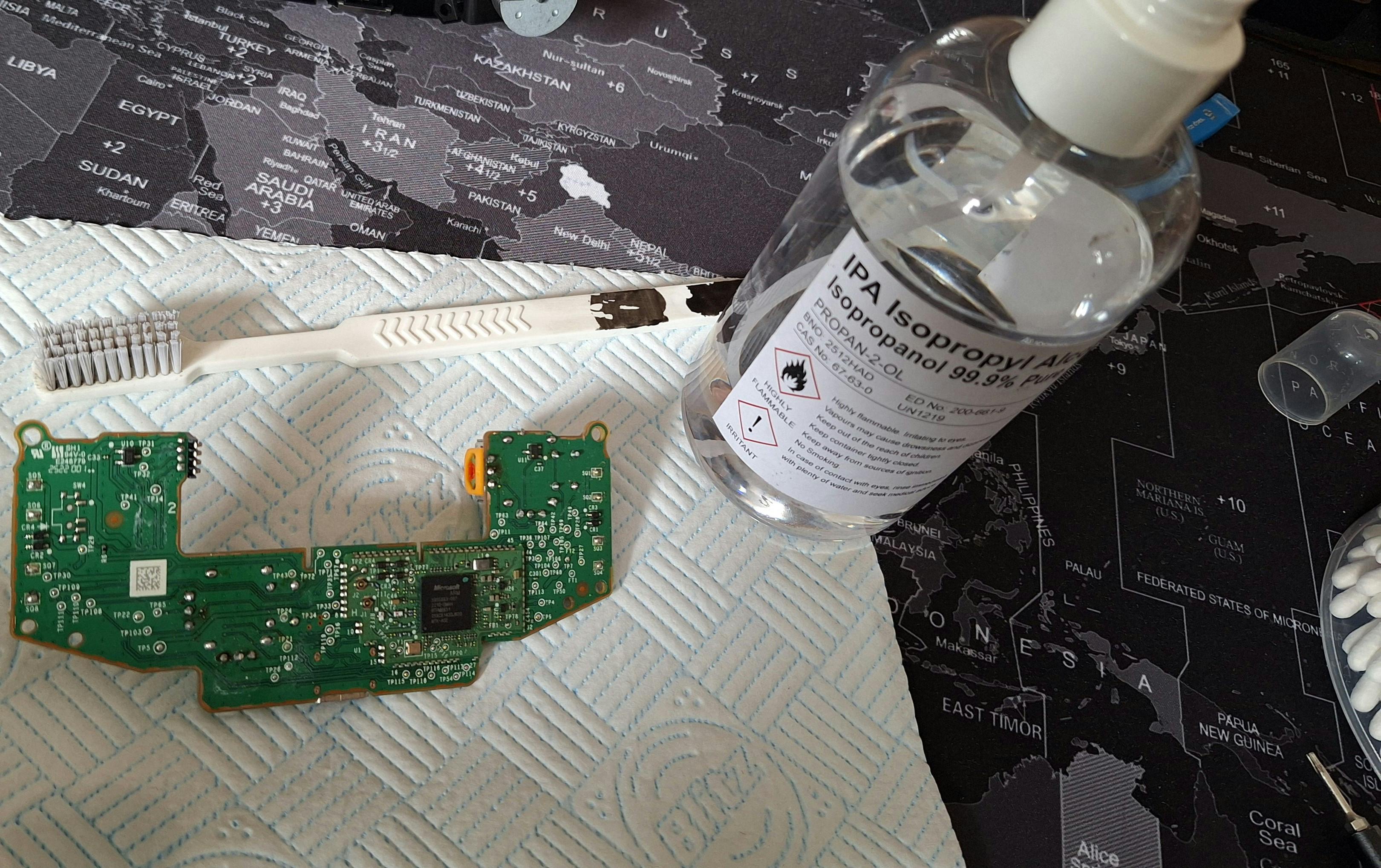
Rebuild your controller, you just finished your repair or upgrade!
Now, the TMR (normal boxes too, but TMRs shouldn't fail like potentiometers do so the fix is short lived on POT boxes) can be infinitely recalibrated via the Xbox Accessories app.
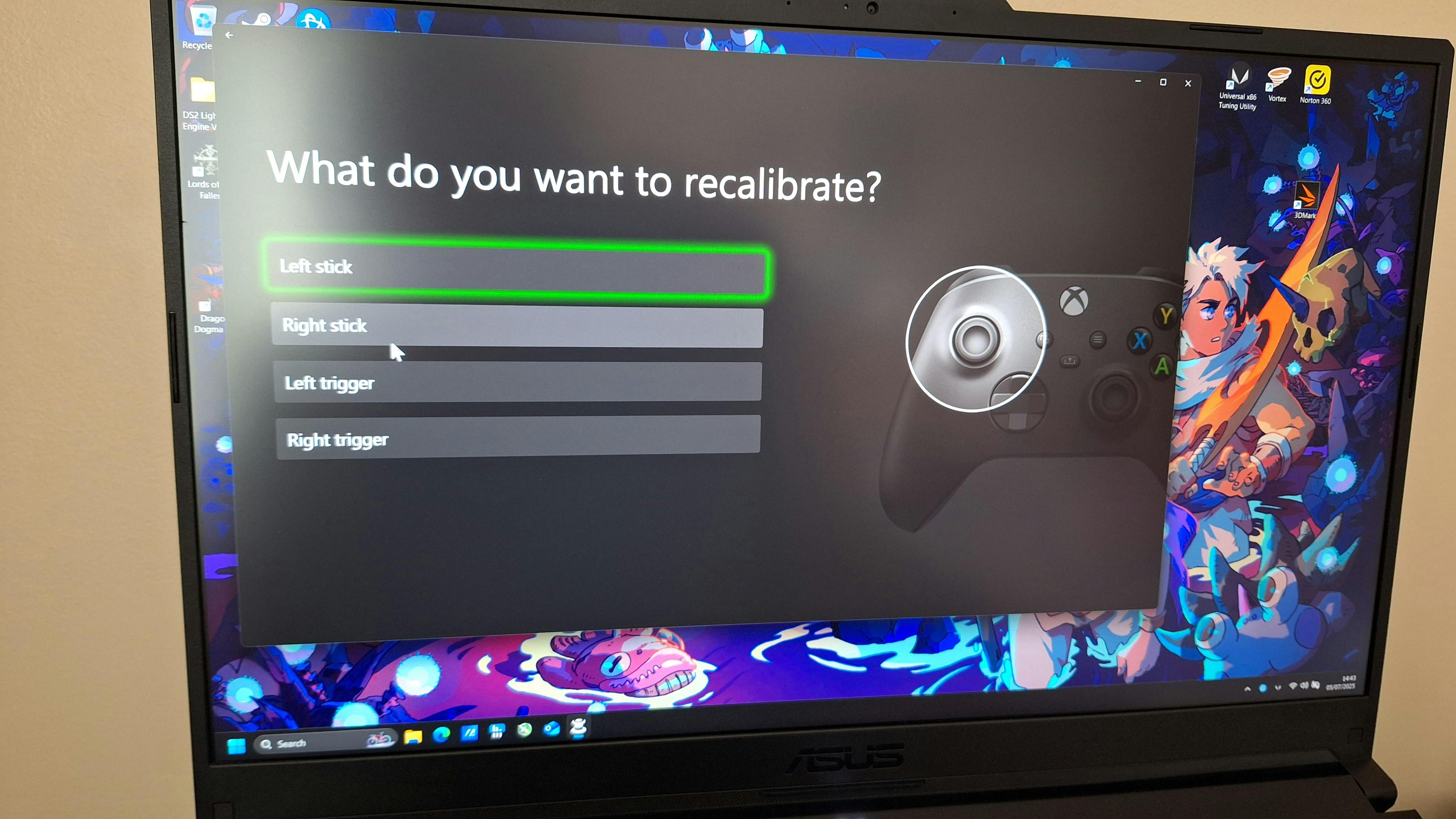
So it's always a first port of call to USB connect your controller to a PC, update firmware then recal your sticks. The app will guide you. Test the calibration with a hardware tester online.
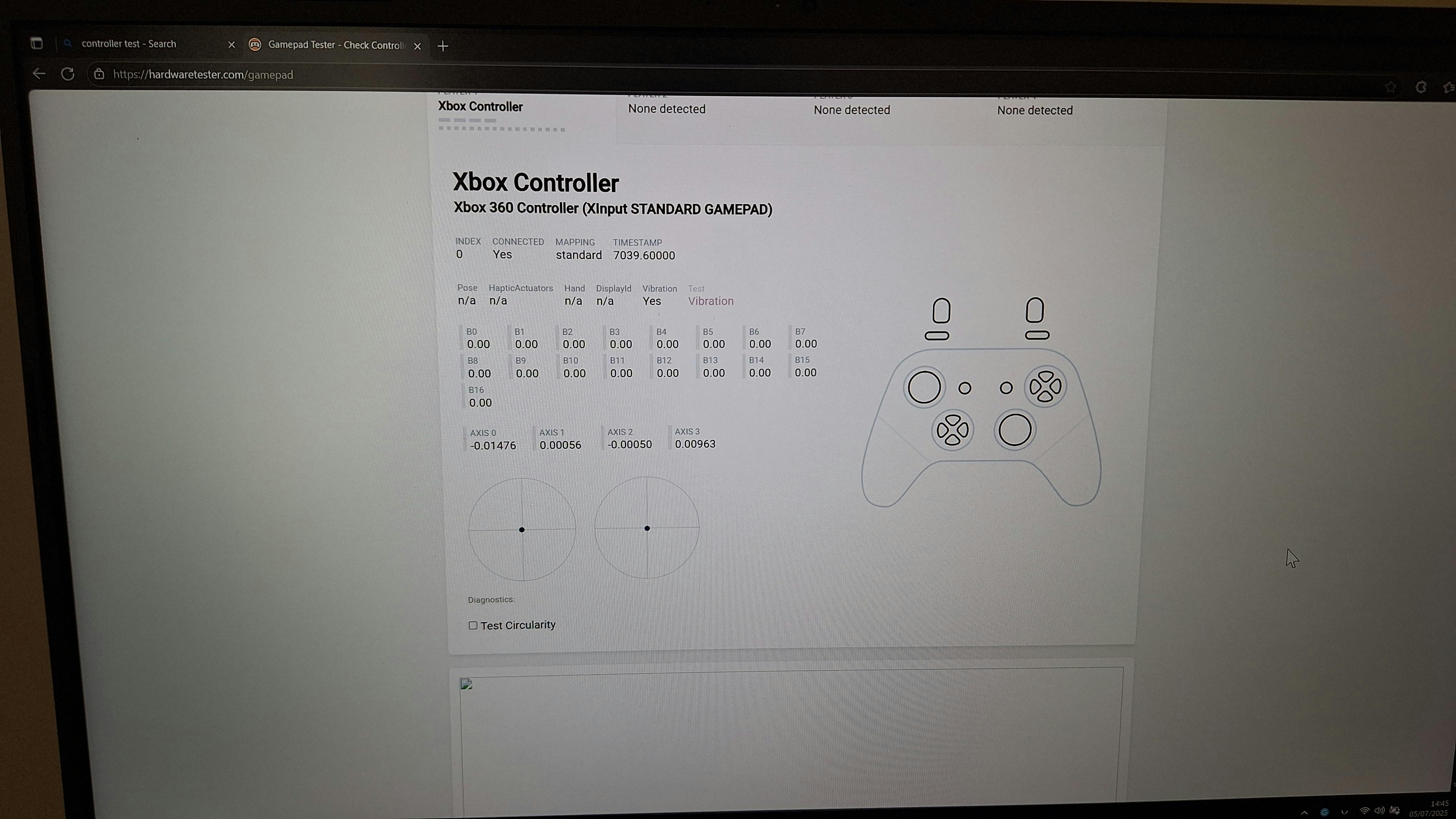
Specifically the sticks, cause that calibration tool can off centre them if you don't do it perfect, you just need to recalibrate which ever one has directions a little off.
And there you have it, new more sensitive and accurate sticks with a lower power draw so longer battery life. No mechanical sensors to fail so in theory they should be golden until your controller dies completely. New Dpad sticker to fix any issues there. Controller is now literally better than new 😛 Any issues, you can always recalibrate the sticks again. The controller is now back from the dead and ready to game better then ever
Bonus round: soldering tips.
You have to be careful with heat, in some cases the hotter the better if you know what you're doing, you want to be in and out in as little time as possible. There are copper traces that are stick to the board that you solder to, if you are too rough or use too much heat too long you can lift them from the board and then unless you're really skilled at making jumper cable fixes, it's game over.
Wear nitrile gloves with and without leaded solder, it's just good practise for health and hygiene for you and the electronics.
Work in a ventilated area, I was using leaded solder and had a fan off to my left gentle blowing fumes out of the shed door, neither flux or lead fumes are good for you.
Practise makes perfect, as you can see I have my own way of doing this and I didn't always get it right, a few of my old PS4 controllers made honourable sacrifices for my learning. When starting out, buying junkyard controllers for repair practise is a really good way to start. Not only that, if it works and isn't a spawn of hell, you can sell it on to recoup your money. Free experience or even profit ;)